See overloads before deadlines break
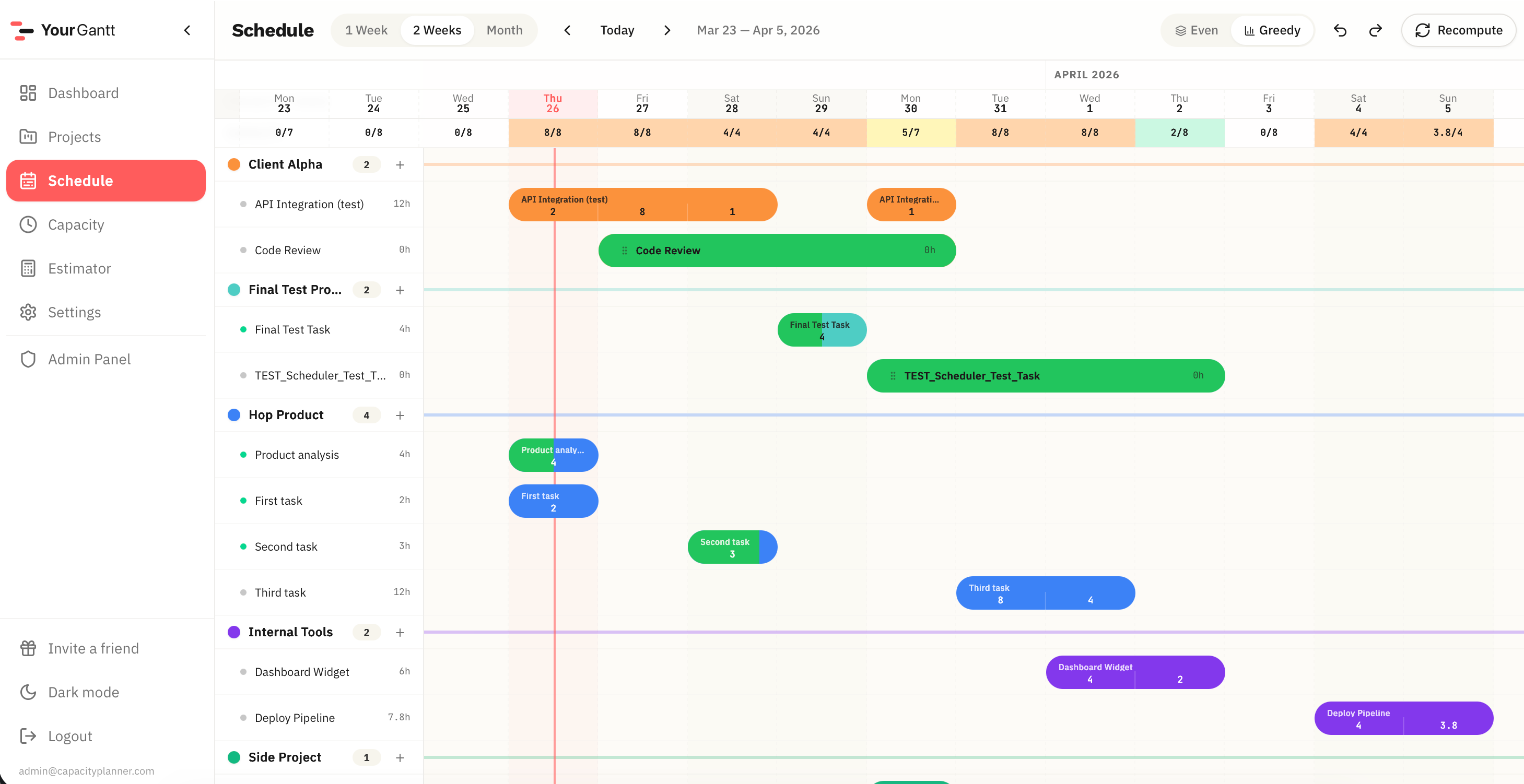
Days where tasks exceed your work hours are highlighted immediately. You see the problem before it turns into a missed deadline.
What overload looks like
Red days in the schedule are days where you've planned more hours than you can work. That's a signal: something needs to be moved or cancelled.
How to avoid overload
Use auto-scheduling: the system distributes tasks within your capacity. If it doesn't fit — you see it immediately, not on the deadline day.
FAQ
Does the service automatically fix overloads?
With auto-scheduling — yes, the system distributes tasks within available hours. In manual mode — it highlights overloads, the decision is yours.
Can I set different capacity per day?
Yes. Set standard hours and add exceptions for specific days (vacation, short day, etc.).
What else YourGantt can do
Auto-scheduling is just the start. Here's what else is included.
Gantt Chart
Interactive schedule: drag tasks, resize durations, see daily workload at a glance.
Workload Dashboard
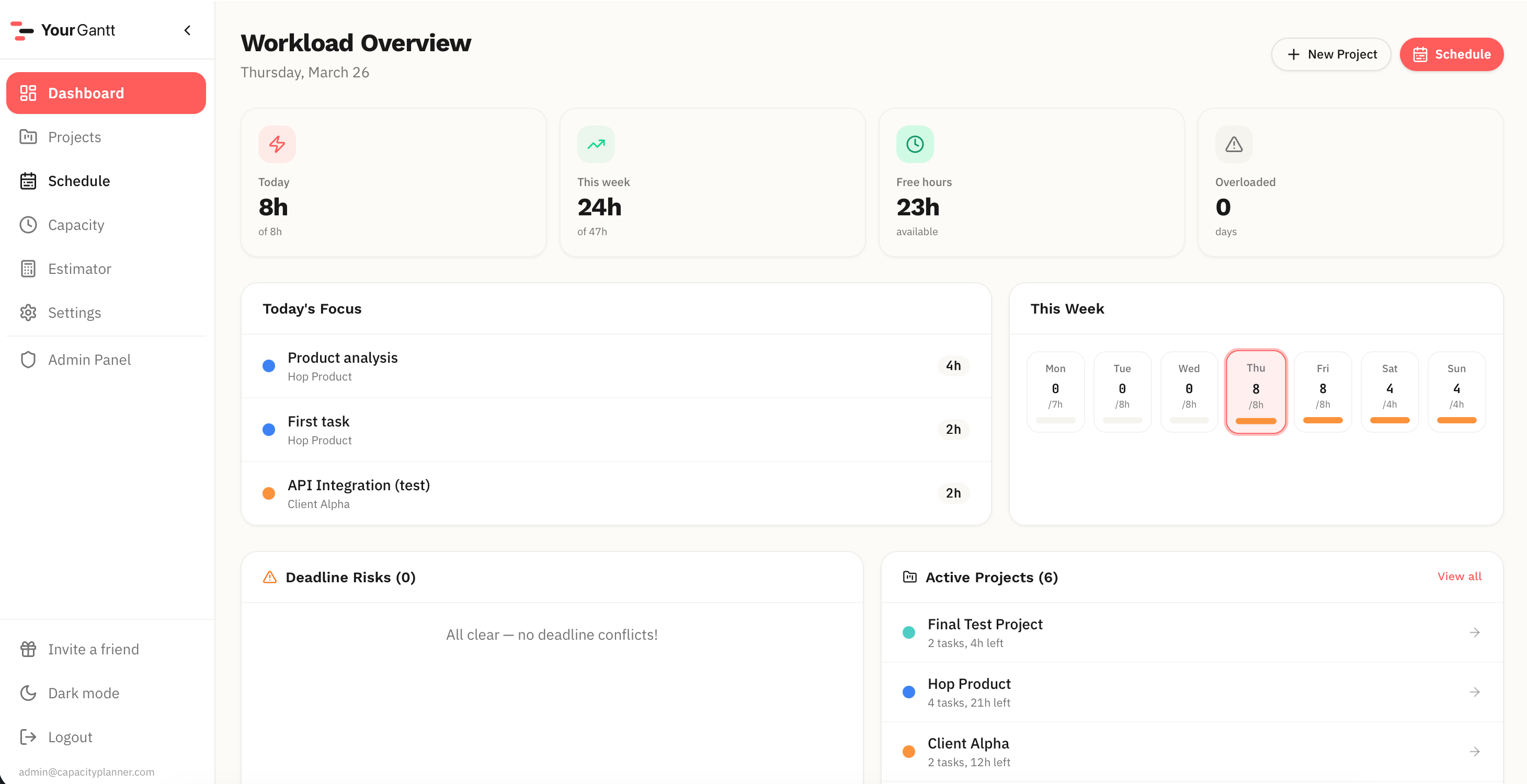
All projects at once: progress, deadlines, overloads — on a single screen.
New Project Estimator
Check how a new project affects your schedule before committing to a deadline.
Even / Greedy Modes
Spread work evenly or focus on urgent — switch scheduling modes in one click.
Priority Overtime
Set allowed overtime for important projects — the system accounts for it automatically.
Project Priorities
Raise priority — and the plan restructures. The important project gets more work time automatically.
Can I take one more?
Check if a new project fits your schedule before committing to the client.
Stop guessing deadlines
Lay out your tasks, check the impact of a new project, and see your work week before it falls apart.